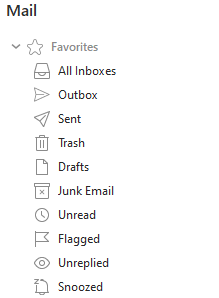
Favorites folders (formerly called Smart Folders) are folders which contain Global folders, such as All Inboxes , Outbox, Sent, Drafts, Junk Email, Trash, Unread, Flagged, Snoozed, and Unreplied which combine all special folders and messages of certain type from all accounts that are active (i.e. Favorites Folders enable you to have a complete overview of all kinds of messages that you exchanged with your contacts.)
You can also pin your own folders to this section to have specific folders handy at the top. Pinned folder can be renamed, for example if you pin numerous different Inbox or Todo folders.
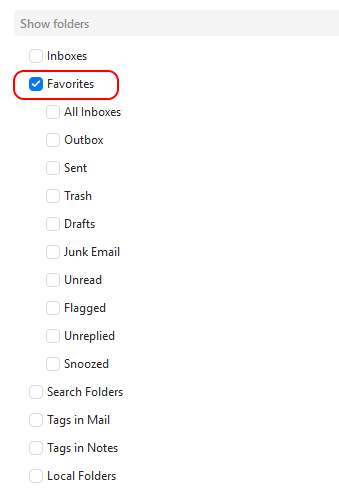
You can enable or disable this feature by going to Menu > Settings > General > Folders and checking/unchecking the box for Favorites.
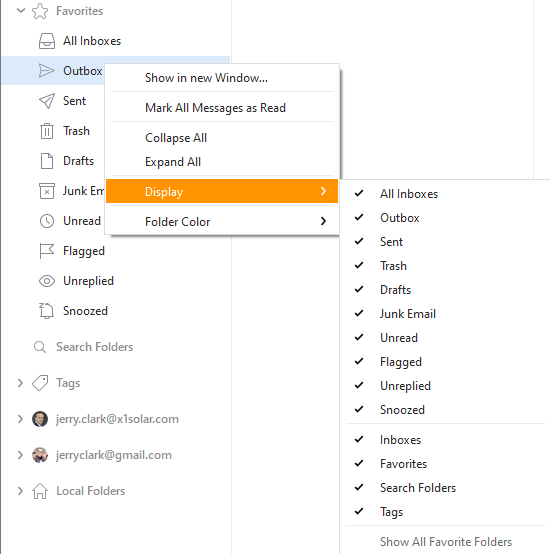
By right-clicking on a particular Favorite folder you can perform various actions: Show in new Window... , Mark All Messages as Read, Collapse All, Display and Folder Color.
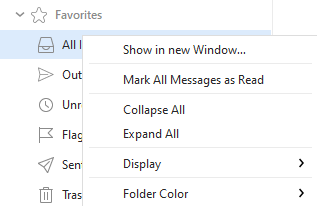
Show in new Window... will open this folder in a new program window.
Mark All Messages as Read will mark all messages in this special folder as Read.
Collapse All will collapse all accounts and folders at once.
Expand All will expand all accounts and folders at once.
Folder color will let you set a specific color for the folder if you want to color code your folder list
By clicking on Display a context menu will appear, showing which of Favorite folders can be displayed at one time (see picture).
You can add links to your most used folders from your specific accounts so you can quickly access them.
For example, if your work email account has a folder called Invoices which you use a lot, you can add a copy of that folder to the Favorites Folders section so that you can quickly access it. This copy of the Invoices folder will automatically update when the original Invoices folder is updated, and vice versa.
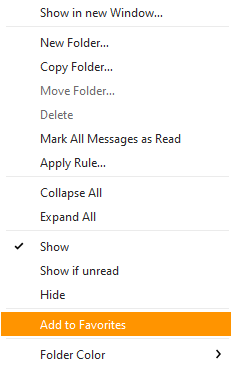
You can easily add account folders to your Favorites folders by dragging and dropping that folder to the Favorites Folder Section. Or you can right-click on the folder and select Add to Favorites from the context menu.
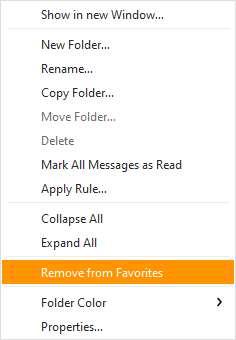
You can remove an added account folder from the Favorites Folders section by right-clicking on the folder and selecting Remove from Favorites from the context menu.